Every update to Planner, newest first. Updates reach Planner on the web, your phone and your Mac on their own, and Planner shows you what’s new the first time you open it after one.
Current version
Planner testers
2026-10-26a to 2026-10-26b
What’s new:
Planner testers
Join Planner testers to try new features before everyone else, and get a short email when one is ready. The first one is Google Tasks in Quick Add. Turn it on or off in Settings > Automation.
Planner in Spanish
Planner can now show its menus, buttons and messages in Spanish. Pick Español under Settings > Appearance > Language. English stays the default, and what you type, like assignment and class names, stays as you wrote it.
Past version
Spotify picks up where you left off
2026-10-25a to 2026-10-25c
What’s new:
Spotify picks up where you left off
A new study timer no longer starts your Spotify playlist on the first song. It carries on from where you stopped, or starts on a random song if you choose Shuffle. Pick one in Settings > Timer under the Spotify link. In the Mac app, Shuffle needs version 0.1.39.
What’s playing, in the floating timer
In the Mac app (version 0.1.39), the floating timer shows the song playing in Spotify or Apple Music, with play, pause and skip. Choose the song in the top line, a player under the timer, or off, in Mac Settings > Study timer.
Share a study session
When a timer ends, press the share button on the Time’s up banner to make a picture of that session: how long, the class, today’s total and your streak. You can also share any session from Session history. The assignment’s name stays off unless you turn on Show what I studied.
Count your streak by week
On Streak & Stats, Counts can now be 3, 4, 5 or 6 days a week instead of every day. A week counts when it has that many streak days, so one busy day or a quiet weekend doesn’t end a long run. Switch back any time and nothing is lost.
Paused timers end on their own
A timer left paused for more than 30 minutes now ends by itself, and the time you studied before pausing still counts, on the day you paused it.
Quiet while you study
While a study timer runs, Planner holds its own notifications and sends them when the timer ends. Reminders for work due within the hour still come right away. Turn it off in Settings > Notifications.
Five more minutes
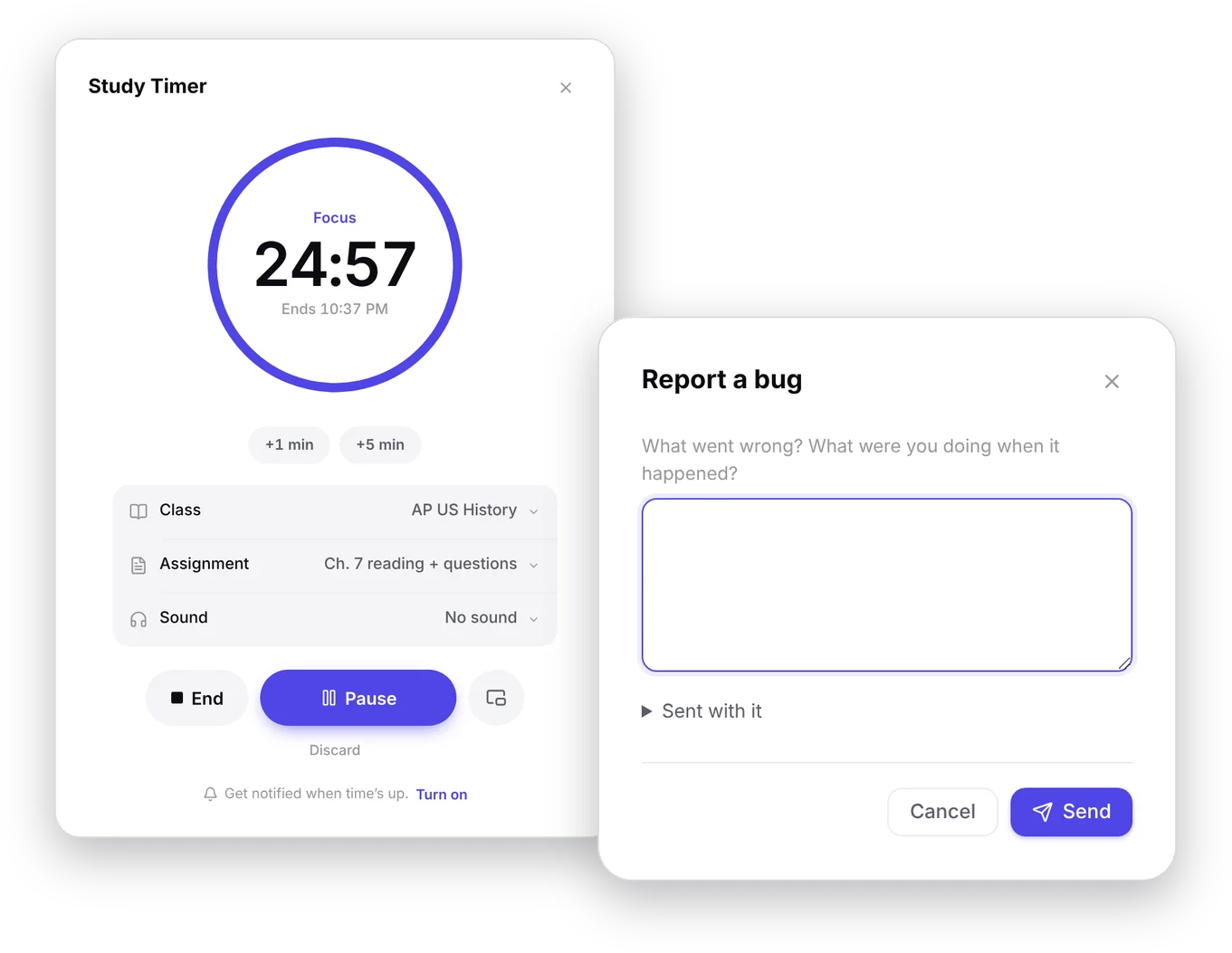
When a timer goes off and you’re not quite done, press +5 min on the Time’s up banner or the pop-out. It runs five more minutes on the same class and assignment, and counts them when it ends. Press it again for five more.
Past version
Morning summary
2026-10-24a
What’s new:
Morning summary
Turn on Morning summary in Settings > Notifications and Planner sends one notification each morning at the time you pick: what’s due today, how much study time is planned and when the first block starts. Days with nothing on stay quiet.
Past version
Google and a password, one account
2026-10-23a to 2026-10-23b
What’s new:
Google and a password, one account
If your email already signs in with a password and you press Continue with Google, Planner now asks you to sign in with the password once, then links Google to the same account. After that, either way opens the same planner.
The same account on your school site
With the Planner extension (version 1.7.4), Planner on your school site says which account it’s signed in to, and if that’s a different account from your Planner tab, offers a button to switch. If you sign out there, it stays signed out until you sign in again. While it signs you in, it says so, with a Sign in myself link.
Confirm your email
New accounts made with an email and password get a link to confirm the address, so Forgot password always reaches you. Until it’s pressed, a short note on the dashboard can send the link again, or change the email if it was mistyped. Already have an account? The note shows for you too. Everything works the same either way.
Signing out clears this device
Signing out now removes your planner from that computer or phone, so the next person to use it can’t see it. It stays saved to your account and comes back when you sign in. If some changes haven’t synced yet, Planner says so before you go.
Passphrase as a setup step
The passphrase no longer pops up on its own. From your account’s third day, it’s a step in Finish setting up on the dashboard, done whenever you like. It’s always in Settings > Encryption too.
Start over if you lose both
With encryption on, if you lose your passphrase and your recovery code, the unlock screen now has Lost the recovery code too? It deletes the locked data, which no one can read anymore, and starts the account fresh with the same sign-in.
Past version
Add highlighted text from anywhere
2026-10-22a to 2026-10-22b
What’s new:
Add highlighted text from anywhere
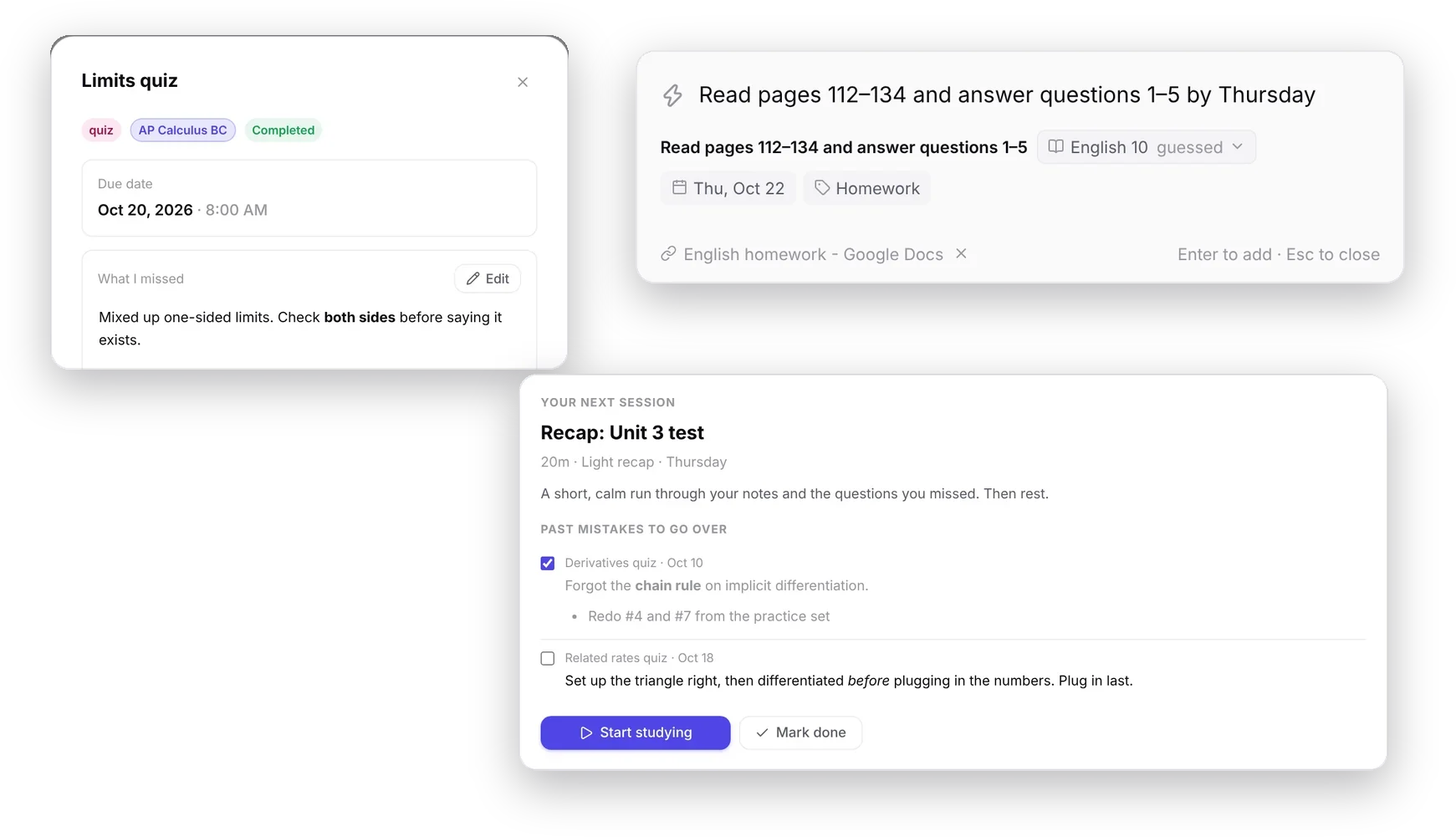
Highlight an assignment in an email, a Google Doc or any web page and press Control+Option+Q in the Mac app, or Alt+Shift+Q in Chrome with the Planner extension (version 1.6.0). Quick Add opens in a small box over what you’re reading, with that text already read back and the page attached as a link. Press Enter to add it and you’re right back where you were.
What I missed, for Exam mode
Once a test or quiz is over, open it and choose What I missed to note what you got wrong. It works like class notes, with the same markdown. When you set up an exam in Exam mode, tick Include previous reported mistakes, and the recap the day before lists that class’s notes as a checklist, so the same mistakes don’t come back. Nothing pops up when a grade comes in, and it’s text only.
Past version
Sick day
2026-10-21a to 2026-10-21h
What’s new:
Spotify and Apple Music on your Mac
In the Mac app, the Study Timer’s Sound can be Spotify or Apple Music, and it’s fully hands off: your playlist starts when a focus timer starts and pauses when you pause, take a break or finish. No sign-in needed. Choose the playlist in Settings > Timer. The first time, your Mac asks if Planner may control the app.
Spotify with the Study Timer
Pick Spotify under Sound in the Study Timer and paste a link to a playlist, album or song. When a focus timer starts, it opens in Spotify, so your study music starts with your session. Change the link in Settings > Timer.
One plan for a new test
When you add a test, project or essay and Planner books time for it in your week, it no longer opens a second suggested study plan on top. The message that says where it went has a Split into steps button if you’d rather study in steps. Without a plan for the week, the suggestion still opens like before.
Working on, in the Study Timer
The Study Timer has one “Working on” list now, instead of picking a class and then an assignment. It lists your open work by class, and starts on whatever is due next. Pick a class’s general study if it isn’t for one assignment.
New assignments start where you left off
The New Assignment form starts on the class you used last time, and on tomorrow instead of today.
Forms keep what you typed
Once you’ve changed something in an assignment, class, grades or calendar settings form, a click outside it no longer closes it. Escape asks before throwing your changes away.
More Undo
Removing a commitment or disconnecting a calendar saves right away, with Undo. Removing a study session always offers Undo, even with “Explain automatic decisions” off. And after Plan My Week, the message names your first session, with a button to see the plan.
In class now
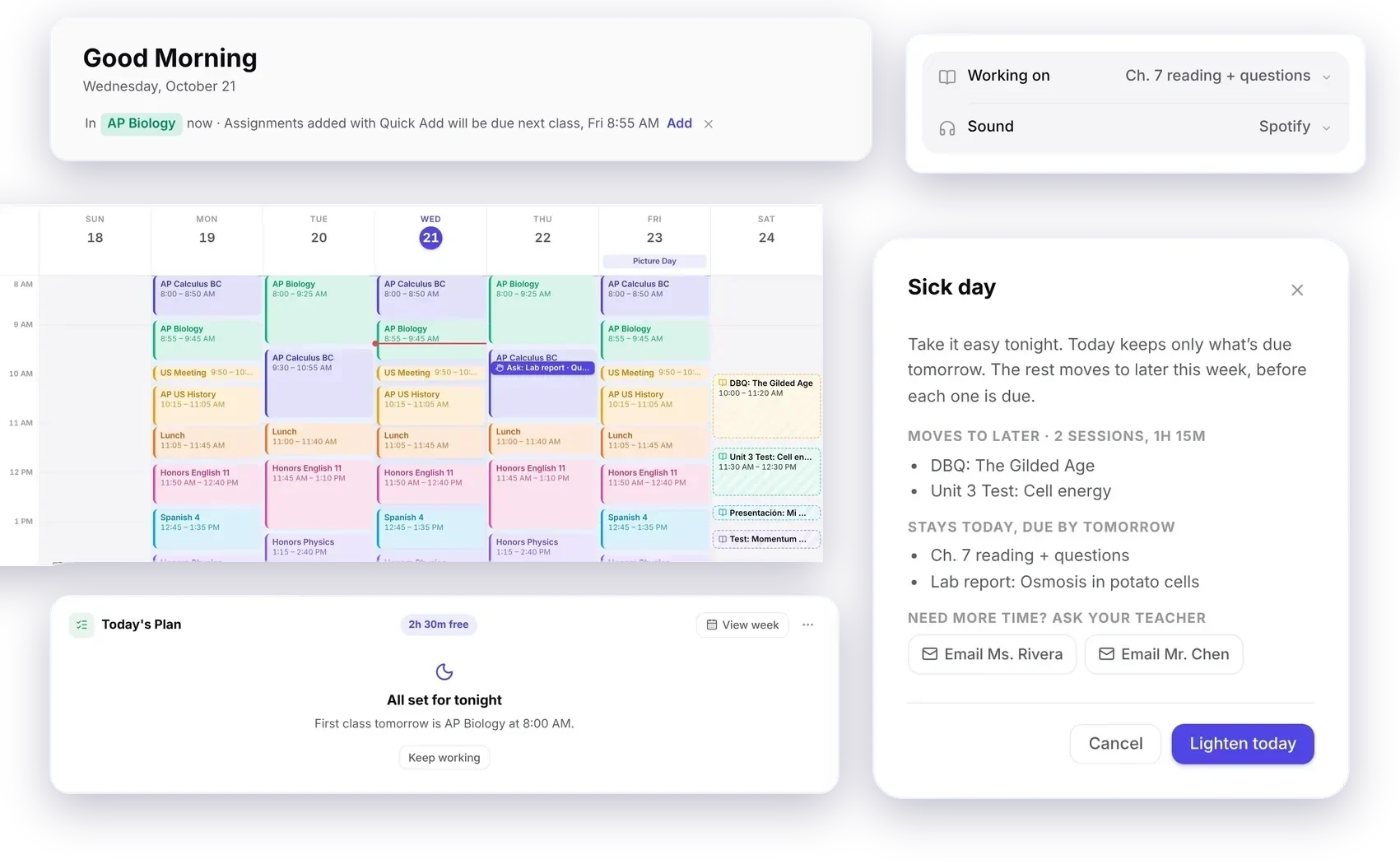
When a class on your calendar is on, the dashboard shows “In Biology now” at the top. Tap Add and type what your teacher just said: it goes to that class and is due when the class next meets, without typing the class name or working out the day. Write a day like “Thursday” and that wins. It stays up for 5 minutes after the bell, and the x hides it if you’re somewhere else.
Sick day
Sick, worn out or away for a game? Choose Sick day from the ⋯ on Today’s Plan, or type “> sick” in ⌘K. Today keeps only what’s due tomorrow, and the rest moves to later this week, before each one is due. For work due tomorrow, Planner can draft an email to your teacher asking for more time. It opens in your mail app, so nothing is sent until you send it. Undo puts your plan back. Replan, Clear plan and Push back are in the same menu now.
Done for the day
Once you tick off the last session on today’s plan, or your study hours for the day are over, Today’s Plan says you’re all set and shows your first class tomorrow, or your next planned session if your class times aren’t synced. Anything you didn’t get to moves to tomorrow with one button, and Undo puts it back. Keep working brings today’s plan back if you still have something to finish.
Ask in class
Stuck on something only your teacher can answer? Open the assignment and choose Waiting on something, or type “> wait” and its name in ⌘K. Ask in class puts a reminder on your Schedule when that class next starts, and Planner won’t plan study time for it until class is over. Waiting on a lab partner or a rubric instead? Pick the day it can go on.
Past version
Your plan moves when your calendar does
2026-10-20a to 2026-10-20e
What’s new:
Your plan moves when your calendar does
When an event is added or moved in a calendar you linked, like Google Calendar, and it lands on a planned study session, Planner moves that session to the next free time before it’s due. Nothing else in your plan changes, and Undo puts it back. You can turn this off in Settings under Automation.
Buttons work on the first click
End, Discard and other buttons with an icon sometimes needed a second click, more often when you clicked quickly. They now respond to the first one, on the website and in the Mac app.
Term summary
Past Classes on the Classes page has a Term summary button. It makes one page for a finished term, or the one on now, with each class’s final grade, the study time you logged and the projects, essays and tests you finished. Print it, save it as a PDF or download it as Markdown for a portfolio or your college counselor.
School sync without visiting the site
With the Chrome extension on version 1.5.0, your school sites sync on their own about once an hour while Chrome is open, so you don’t have to go to them. New work shows up to review the next time you open Planner on any device, including the Mac app and your phone (extension 1.5.1). You can change how often, or turn it off, in the extension’s options.
A tidier Quick Add
The help text under Quick Add is gone. The box itself now shows a new example every few seconds, and the preview under it still shows what you’re about to add.
Past version
Undo almost everything
2026-10-19a to 2026-10-19f
What’s new:
Undo almost everything
Ticking something off, deleting an assignment, a link or a study step, clearing a reminder, clearing your plan and moving a due date all happen right away with Undo in the message. Moving a date keeps its due time.
A next step when the timer ends
When time’s up, the banner offers to mark the assignment done or start your next planned session.
Fewer questions
New Assignment picks the type from the title, Add Class asks only for a name, an assignment shows its time estimate as one line, and the grades editor lets you type the overall grade straight away.
Clearer screens
Needs attention shows only real problems, with any tip in a quieter card below. Push back shows once a session has started. Plan My Week is the main button on the Plan view, and the main button on phones keeps its label.
Timer sessions on your calendar
Every Study Timer session now shows on the Schedule and in its day on the Calendar, at the time you studied, so you can look back and see what you did. It shows the assignment you picked, or General study if you didn’t pick one. Click one to fix its length.
Quick Add shows what it read
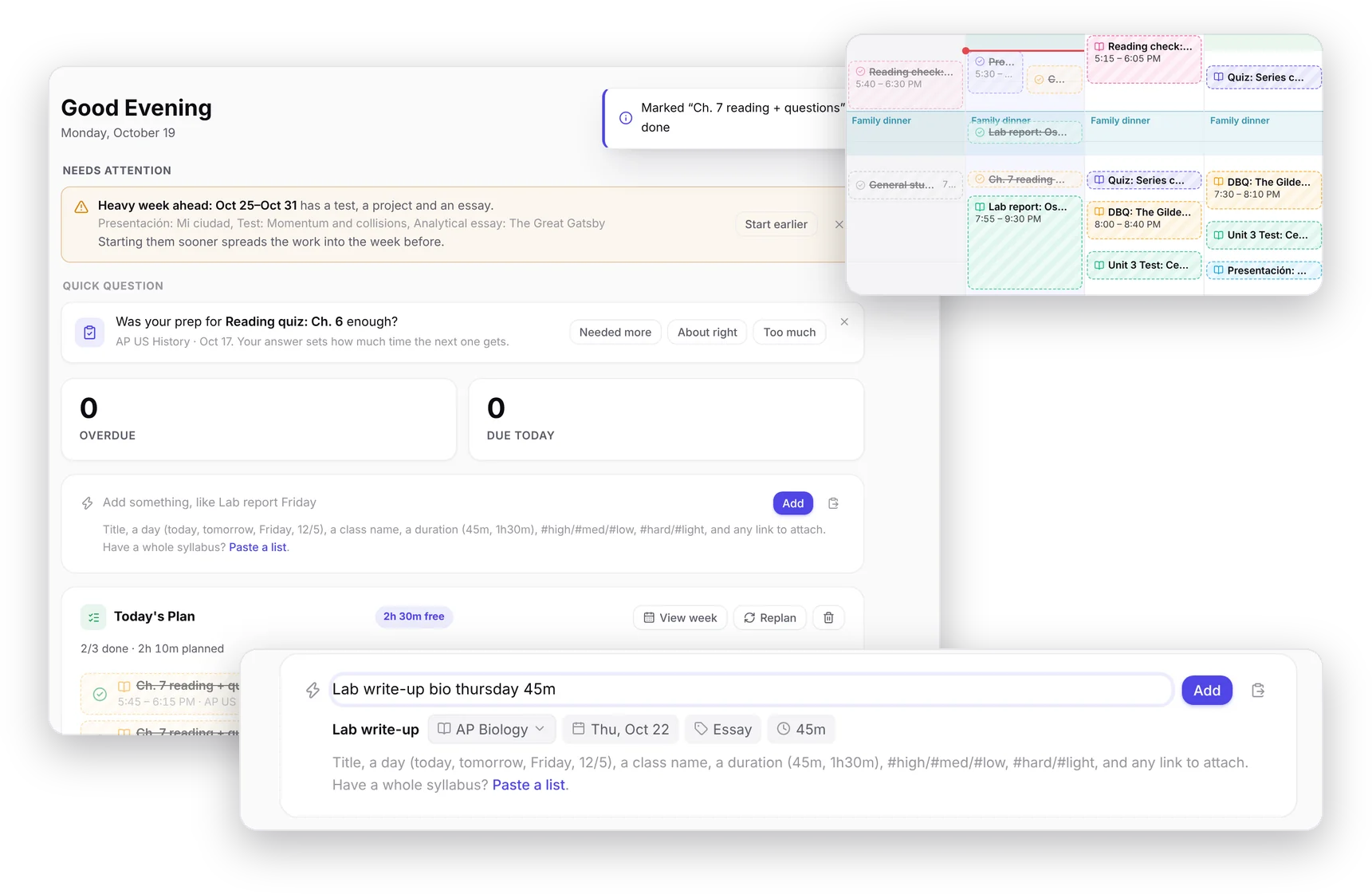
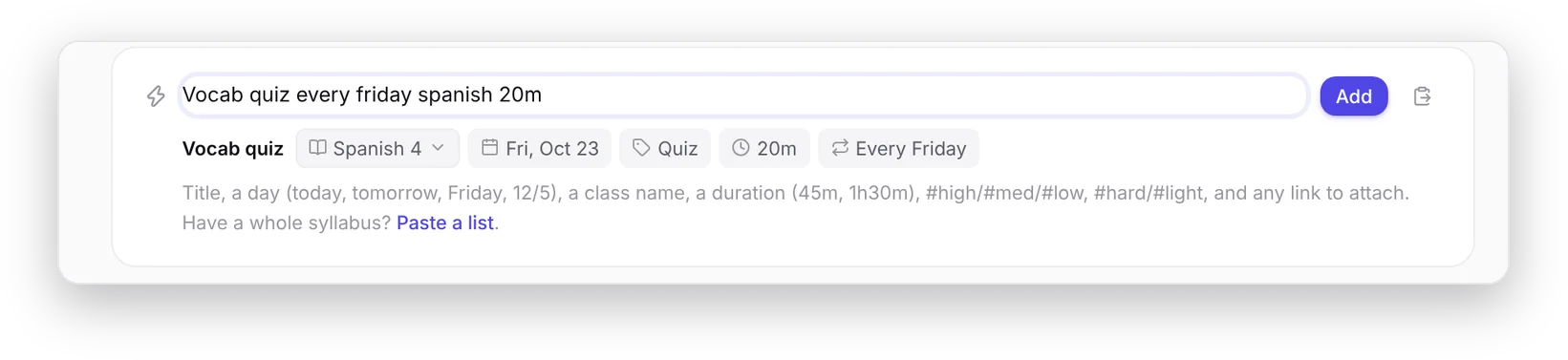
As you type in Quick Add, a line underneath shows what will be saved: the title, the class, the day, and any time, priority or repeat it picked out. If the class is a guess, tap it to pick the right one before you add. After adding, Edit is right there in the message.
Faster New Assignment form
Type a title like “Lab report Friday Chemistry 45m” and press Fill in (or Enter) to set the day, class and time from it. Enter in the title adds the assignment.
Study time check after importing a calendar
The first time you press Plan My Week, Planner asks when you’re free to study. It used to skip that if you had already imported a calendar. Now it asks anyway, so your first plan uses hours you picked.
Clearer Ignore when importing
When you import from your school, each row now has an Import box and a separate Ignore button. Untick Import to leave something out this time, or press Ignore and it won't show up again. On a phone, each row is a small card so both are easy to reach.
Settings and study time fixes
Typing a School Website no longer warns you halfway through, and something you just typed in Settings is kept when you press a button like Report a bug. In Calendar settings, + no longer adds a study window you already have.
Past version
A cleaner Study Timer
2026-10-18a to 2026-10-18m
What’s new:
Report a bug from inside Planner
Settings, About has a Report a bug button. Write what went wrong and press Send, and it goes straight to the person who makes Planner with your version and browser attached. You can see everything that is sent before you send it.
Settings save on their own
Every change in Settings is saved as you make it, so there is no Save button and closing the window never loses anything. Exam mode has moved to Settings, Automation.
More than one study window a day
In Calendar settings, Study time, press + next to a day to add another window, like a free period and the evening. Plan My Week uses all of them.
Finish early, start the next one sooner
Ending a study session early on the timer now shortens it on your schedule and moves the rest of today’s sessions up by the time you saved. Finish a 20 minute session in 8 and the next one starts 12 minutes earlier. Classes and events stay put, and Undo puts everything back.
Your own break lengths
A length you type into the timer counts as study time unless you tick Break next to it, so a 15 minute timer is no longer treated as a break. Presets can be marked as breaks too, when you save one or in Settings, Timer.
Day notes are gone
The Note button on a calendar day has been removed, along with the note line in month and week view. Assignments, plans and school day labels show the same as before.
A cleaner Study Timer
The timer ring is bigger and says Focus, Break or Paused above the time and when it ends below it. Breaks turn the ring green, and the class, assignment and sound pickers sit together in one list.
A stopwatch in the study timer
Pick Stopwatch in the Study Timer and it counts up until you press End, then logs the time like any timer. Handy when you don’t know how long the homework will take.
Duplicate an assignment
Duplicate in an assignment’s ... menu opens New Assignment filled in with the same class, type and notes, so all you change is the date.
Show just tests, essays, projects or homework
The sort button on Assignments now has a Show section. Pick Tests and quizzes, for example, and the list keeps only those until you switch back. Completed work now starts with the most recent due date.
Change class or priority for several at once
After Select on Assignments, the Change picker sets the type, class or priority of everything you picked, with Undo.
Print next week
Print now asks This week or Next week, and picks Next week on Fridays and Saturdays.
GPA on your dashboard, if you want it
Customize the number cards on your dashboard to add GPA or Weighted GPA. They’re off unless you turn them on.
Tidier on your phone
On a phone, the due date and time fields in New Assignment stay inside the form, and color and icon pickers no longer run off the edge. Every grade category shows in the Grades sheet, the Grade Predictor keeps room for category names, and the month calendar shows a colored bar for each assignment instead of names cut to two letters.
Sync fixes
Coming back to Planner right after a change, on this device or another, could briefly show the older copy and undo that change on screen until the next save. It now keeps the newer one. And a device that turns on notifications no longer loses them when the daily reminder run clears out old devices.
Pin is gone from the assignment menu
Pinning an assignment never changed where it showed up, so it’s been taken out of the ... menu. Pinning classes in the sidebar works the same as before.
Breaks in the timer are labeled, and start on their own
The 5 and 15 minute timers now say break, and sit apart from the study lengths. When a planned study session ends and the plan has a break before the next one, a break timer of that length starts by itself. When it ends, Planner tells you which session is next.
A tidier Quick Add box
The Quick Add box on your dashboard has a shorter hint. After your first few adds, the list of what it understands (days, durations, #high and the rest) tucks behind the ? button next to Add. The Plan view also asks about personal goals once instead of twice, and a few labels in Settings and New Assignment now match the rest of the app.
Prepare for a test from the test itself
Open a test that’s coming up and Planner offers to prepare for it. One tap turns on Exam mode and shows a review plan for that test, so you don’t have to find Exam mode in Settings first.
Past version
Do things from search
2026-10-17a to 2026-10-17f
What’s new:
Due this week shows the right list
Tapping Due this week on the dashboard now opens just the work due before the week ends, instead of everything still pending. There’s a This week filter on the Assignments page too.
Past Classes fixes
Bringing back a deleted class from Past Classes now brings its assignments back from Recently deleted too. Restoring a class from Recently deleted takes its notes-only copy out of Past Classes. And finishing a class with “Keep its notes and resources searchable” turned off now really keeps them out of search.
Old class notes stay findable
When you archive a term, finish a class or delete one, you can keep its notes, resources and the files and links on its assignments. They show under Past Classes on the Classes page, and Command K search finds them, so last year’s Chemistry notes are still there when you study for AP Chemistry.
Do things from search
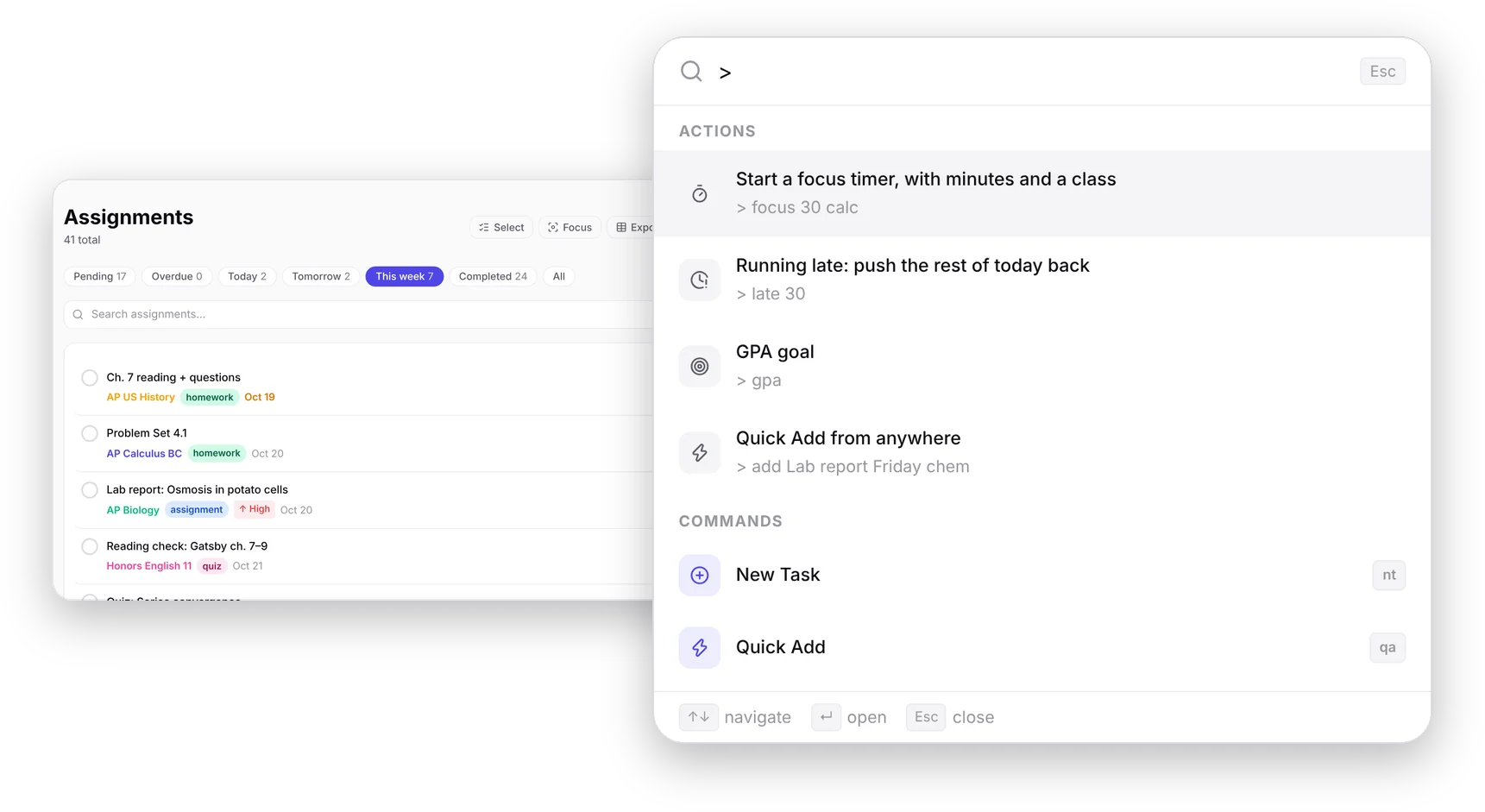
Open search with ⌘K, type > and an action, and press Enter. “> focus 30 calc” starts a 30 minute timer for Precalculus, “> late 30” pushes the rest of today back, “> gpa” opens GPA goal, and “> add Lab report Friday chem” adds it with Quick Add from any page. Type a grade like 89.5/100 or 45/50 + 38/40 to see the percent and letter.
A shorter What’s new
If you’ve been away for a while, this popup now shows the newest few changes instead of all of them. The rest are under See all updates.
Storage adds up
Settings now lists everything using your storage, not just the four biggest parts, so the numbers add up to the total.
Past terms no longer fill up your storage
Archived terms and finished classes are now saved on their own, outside your account’s 1 MB limit, so years of Past Classes never stop your planner from syncing. Nothing changes in how they look or work.
Past version
Find study group time
2026-10-16a to 2026-10-16m
What’s new:
Every number on the dashboard opens its list
Due today, Due tomorrow and Due this week now open those assignments, and Study left today opens your week’s plan. Grade sync also says whether your school’s grade is higher or lower than Planner’s, instead of always showing an up arrow.
Timer
The tab shows the time left, so you can see it from another tab. The alarm goes quiet after a minute, and the banner stays until you dismiss it. Time’s up now reaches every device you get Planner notifications on. You can also point the timer at one assignment, and its minutes count toward that assignment.
Study done away from Planner
Add study time you did somewhere else from Session history, or from an assignment’s menu. It counts in Streak and Stats and toward the assignment, like time from the timer.
Your plan keeps up
Change how long something will take, or finish it early, and its study time changes to match. Time it gives back goes to work that didn’t fit. Each change has Undo. Sessions for a test with more study next week say so, and the dashboard tells you when the week’s plan has run out.
More say over when you study
Commitments can run between two dates, like a sports season, and show in the Schedule view. You can set a different study limit for weekends. Give an assignment a due time and work due late in the day can use part of that day. The clash notice also catches sessions on top of each other or on goal time, and sessions left outside study hours you changed.
Sign-up and setup
Create Account can show your password as you type it and links the Privacy Policy. Enter on the email field moves to the next field. In setup, paste a list of classes to add them all at once. If you skipped setup, the empty dashboard has a button to connect your school.
Your plan follows the dates you move
Move a due date yourself (edit it, drag it on the calendar, snooze it or move it to tomorrow) and the study time planned for it moves too, so nothing is left after the new date. Undo puts both back. A project with a start date now gets time from that day on, instead of none that week.
Calendar links and Blackbaud
Connecting a calendar link during setup goes on to your classes, and the import can make a new class for work that has none. Closing the import without importing brings the same work back next time. Blackbaud opens your own school’s address, which you can set in Settings under School connection.
Timer fixes
With Planner open in two tabs, a finished timer counts once. A timer that ran out while Planner was closed for days still counts, up to two weeks later. Time’s up notifications no longer come twice.
Sign-up and setup
Create Account lets your password manager suggest a strong password, the Sign In and Create Account tabs work with the keyboard, and your name shows in the sidebar right away. An address you’re typing in setup no longer gets cleared, and opening Planner offline no longer starts setup again.
Session history and stats
Session history can delete planned sessions older than 2 months to free up space in your account. Best hours and plan follow-through no longer count sessions ticked off because you finished early, and Weekly Review shows which test a slipped study step was for.
Timer fixes
A timer you use on two devices stays in step even when a window is open on one of them. A timer that ran out while your laptop slept counts once, on the day it ended. Ending an exam session early counts the minutes you studied, not the full session. Your focus length always counts as focus, and the Time’s up banner shows above Focus Mode.
Study plan fixes
Goal blocks no longer land on top of study sessions, and moving a session goes around them too. Plan My Week shows work that doesn’t fit instead of saying there’s nothing to schedule, and closing it without accepting no longer stops the weekend plan. Homework due the day after a plan ends gets that plan’s last evening. Planner no longer asks if you finished a test that has more study coming next week, and study plan steps can’t be dated after the test.
Smoother first setup
Setting up a new account no longer gets covered by other windows, keeps you from adding the same class twice, and starts with the usual timer presets.
One menu for each assignment and class
On a computer, assignments and class cards now have a single … button instead of a row of small icons. It opens the same menu you get from press-and-hold on a phone, and right-clicking an assignment, a study session or a class opens it too.
Tidier class pages
Once a class has grades, its page no longer shows a separate Grades button at the top, since the Grade Overview card right below already has them. Use Edit on that card to change them. Classes without grades still have the button so you can add some.
Paste a whole syllabus
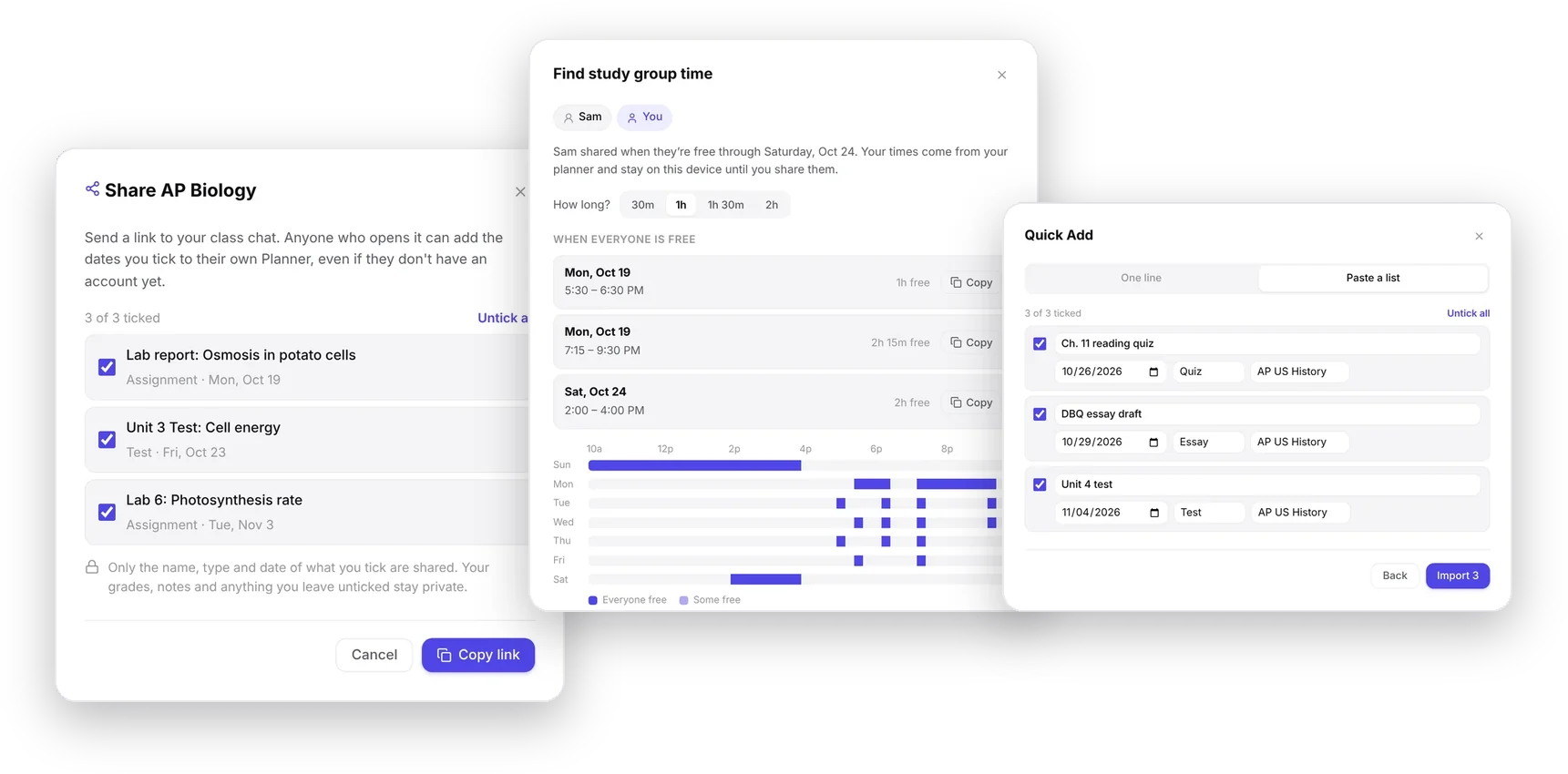
Quick Add has a new Paste a list tab. Copy the dates from a syllabus, an email or a class announcement, paste them in, and each line becomes an assignment you can check before adding. Lines without a date and dates that already passed start unticked. Once they’re in, one tap turns them into a Class Pack link for your class chat.
Sharing tips when they help
Add an assignment with Group, Partner, Lab or Presentation in its name and it gets a small link to find a time when you and your partners are all free. Once a class has three or more assignments or test dates, its page gets a Share button and a short tip about it, and adding a second upcoming test or project offers a Class Pack link, so your classmates can add the same dates. Each tip shows once, and you can close it.
Share a class’s dates with one link
Open a class and tap Share, tick the homework and tests you want to pass on, and send the link to your class chat. Anyone who opens it can add those dates to their own Planner in a couple of taps, even if they don’t have an account yet. Only names, types and dates go in the link. Your grades and notes never do.
Block distracting sites while you study
With the Severn Planner Chrome extension on your computer, a focus timer can keep sites like YouTube, TikTok and Reddit closed until it ends or your break starts. It’s off until you turn it on, and you pick the sites. Find it in Settings → Timer. If it asks you to update the extension, Chrome usually does that on its own within a day.
Find study group time
Working on a group project? On the Schedule, tap Find group time and send the link to your group chat. Each friend who opens it adds when they’re free, and Planner shows the times this week that work for everyone. Only busy and free times are shared, never your classes, assignments or grades, and the link stops working after a week.
Questions that look like Planner
When Planner checks before deleting or changing something, like removing a calendar link or signing out, it now asks in its own window instead of the browser’s gray pop-up. Escape or clicking outside cancels.
Undo Clear All reminders
Clearing all your reminders now shows an Undo button for a few seconds, so a slip of the finger doesn’t lose them.
Your weekly review, on Sunday
With notifications on, Planner tells you on Sunday at 4 PM when your weekly review is ready, and tapping it opens the review. If your week isn’t planned yet, this takes the place of Sunday’s planning reminder, so it isn’t one more. You can turn it off in Settings → Notifications.
The review opens with your week in one line
Like “You studied 6h 20m and got ready for 2 tests.” The rest comes in a piece at a time, with Plan next week at the end.
Fewer notifications
The overdue and due-tomorrow summary now comes once a day, at 7 PM, instead of twice. And opening Planner clears the notifications it left on that device.
The timer says where your time went
When a study timer ends, it tells you what it counted toward: the session it ticked off and when the next one is, your time on that class this week, or what you’ve studied today. When a break ends, it says so.
Past version
Year GPA
2026-10-15a to 2026-10-15j
What’s new:
You can see when changes aren’t syncing
If Planner can’t save to your account for more than a few seconds, or you’re offline, a bar at the bottom says so, with a Retry button. Your changes stay safe on this device the whole time, and Planner tells you once everything has synced.
Short timer runs can count
Ending the timer before a minute used to log nothing. Now you can tap Keep it to count it as a minute of today’s study time.
Planner fixes for repeats and tests
Homework that repeats, like every weekday, now gets study time before each one. Plan My Week used to plan only the next one. Tests also start on time when you plan a week ahead: one due early in the week after next now gets its first study days in this week’s plan, instead of only the last two days before it.
Study hours that end at midnight
Setting study hours like 8 PM to 12 AM used to turn that day off without saying so. Now they count up to midnight, and hours that go past midnight count up to midnight too.
Linked calendars read more cleanly
Google Calendar events with an email reminder showed up as “Alarm notification”. They now keep their own names and lengths, and titles with a semicolon no longer show a stray backslash.
Calendar times in other time zones
Events from a calendar set to another time zone now show at your time: a 4 PM call in Chicago blocks 5 PM in New York. Repeating events that run past midnight, like a 10 PM to 1 AM shift, now block the next morning too, and school-night sleep blocks the mornings after those nights.
Repeating assignments repeat
Choosing Weekly (or another repeat) for a new assignment without a Repeat Until date used to add just the first one. Now Repeat Until starts filled in with the end of your last grading period, or June 15, the same as Quick Add.
Weekly Review only counts what slipped
Opening Weekly Review in the middle of the week no longer lists work that isn’t due yet, or today’s study sessions, under What slipped.
Class grades fit on your phone
The grades window no longer cuts off the Add button, your teacher and term, or category names on a phone.
Easier to read suggested schedules
The Suggested schedule window now scrolls as one page instead of having a smaller scrolling box inside it. Accept Plan stays at the bottom where you can reach it.
Fix your study sessions
Forgot to stop the timer? Streak & Stats now has Session history. Tap a session to change its minutes or remove it, and your study totals update to match. It lists sessions from now on, for 60 days.
Year GPA
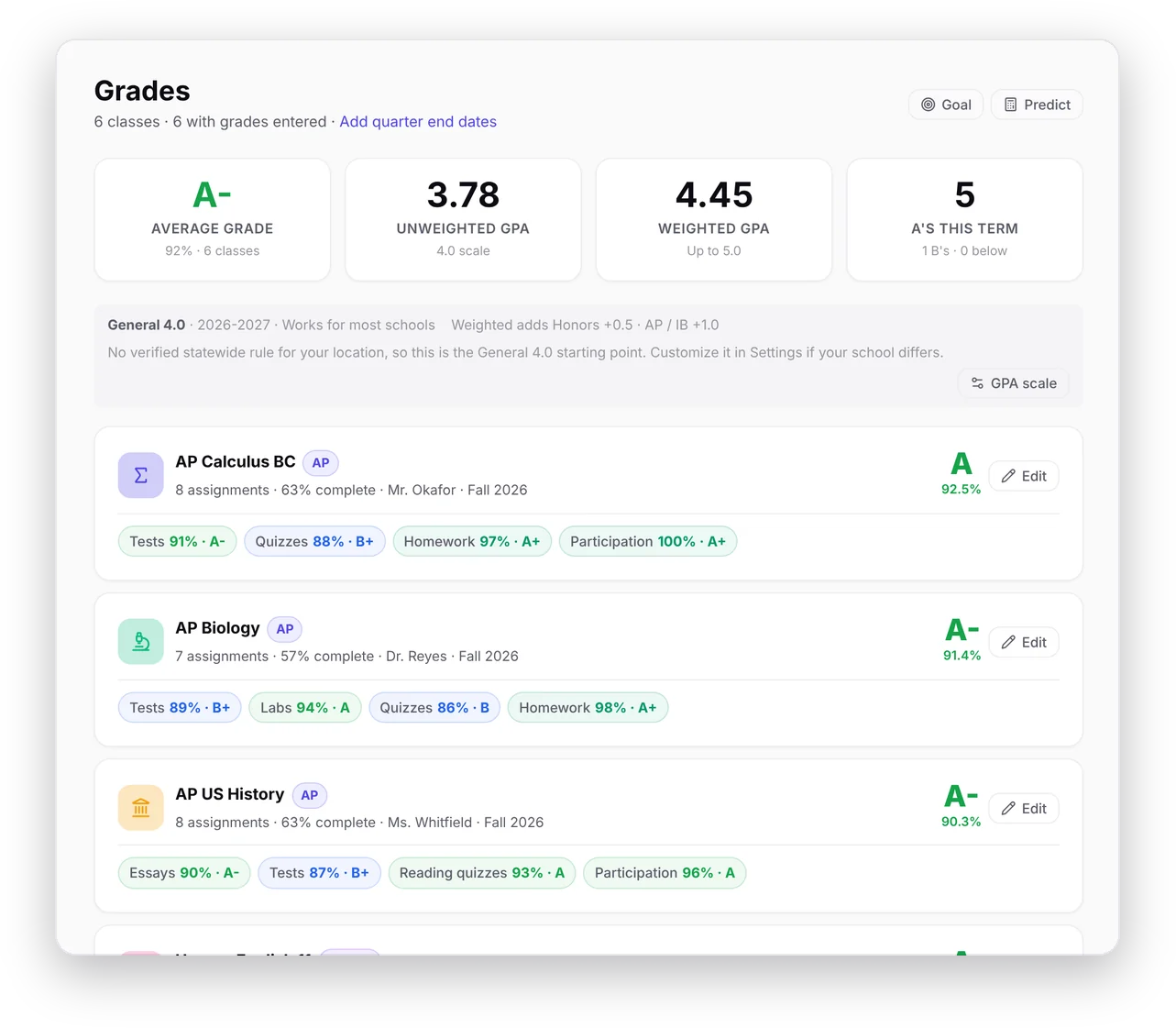
Once you archive a quarter or semester, Grades shows your GPA for the year so far, and Past Classes shows it for each school year. Archiving a term from an earlier year? Pick its school year when you archive it, or change it later in Past Classes.
Share your week
Tap Share my week on Streak & Stats to get a picture of your streak, study time and work done that you can post or send.
Simpler settings and forms
Settings now has its own School, Notifications and Privacy & data tabs, and Connect your school opens the same list as setup. New Assignment and Add Class show only what you need, with the rest under More options. Study time settings use plain words and show minutes and hours.
Every school platform in one list
Import from your school now lists every platform in one place. Pick yours and Planner shows the way that works in your browser, like the Chrome extension, a Canvas token or a calendar link.
Turned-in work comes in done
When you connect Canvas, Google Classroom or Schoology, anything you already turned in there is imported as done instead of showing up as work still to do.
Past version
Repeats in Quick Add
2026-10-14 to 2026-10-14k
What’s new:
Plan My Week reads better on phones
On a phone, each session in Plan My Week now shows its full title, with the class and length on a line underneath.
Finished classes save space
When you finish a class, its assignments now stay in Past Classes for 60 days, then they’re cleared to save space. The class, its grade, notes and reminders stay, and it still counts in your GPA.
Repeats in Quick Add
Type “Vocab quiz every Friday” or “Reading log every Mon and Wed until Dec 18” and Quick Add sets up the whole series. Without an end date it runs to the end of the school year.
Start dates for projects
Give a project a start date and it stays out of your lists and your plan until then. It still shows on the calendar on its due date.
Notes on a day
Open a day on the Calendar and tap Note to jot down things like “Half day” or “Bring permission slip”. The note shows on the calendar and the Schedule.
Reminders open the assignment
Tapping a study session reminder or a due date change notification now opens that assignment, not the dashboard.
School name and website moved
Your school’s name and website are now in Settings under Dashboard. They set the school button at the top of your dashboard.
More school platforms, with a calendar link
If your school uses Brightspace, Moodle, Blackboard, ManageBac, Toddle or Veracross, you can now bring in your assignments by pasting your platform’s calendar link in Settings under School sync. Schoology works this way too, without the extension. It works in any browser, phones included. A calendar link carries titles and due dates, not grades, and new or changed work comes to you to review first.
Links from imported assignments land in Resources
When an assignment from your school has links in its description, they now show up in its Resources too, so they’re easy to open and you can find them with search. Assignments you already imported get theirs added once.
Add more schools from any browser
Settings shows Add another platform again in Safari and other browsers without the extension, with the school connection buttons tidied up. And when you add Canvas, you now choose: the Chrome extension or an access token.
Stats in ChatGPT and other AI apps
The connector for your stats now works with any AI app that can add a custom connector, like ChatGPT, not just Claude. The setting is now called AI assistants, and turning it off disconnects every app at once. Each app has its own age rules.
Ask Claude about your stats
If you use Claude, you can connect it to Planner and ask about your study habits, like which class gets the least time or whether your grades are trending up. Turn it on in Settings under Claude, then add the connector address shown there in Claude. Claude reads only your Streak & Stats, never assignment names, notes or files, and can’t change anything. Turning it off disconnects it. Claude is for people 18 and older.
Sync Canvas without the extension
Canvas can now sync from any browser, including Safari and phones, with an access token you make in Canvas (Account, then Settings, then New Access Token). Paste it in Settings under School sync. Planner only reads your courses, assignments, due dates and grades, and checks for changes when you open it and every few minutes while it’s open. The token stays on the device you add it on.
Past version
Today’s schedule in Focus Mode
2026-10-13 to 2026-10-13e
What’s new:
Ticked study sessions count as study time
Ticking off a session in a Study Plan now adds its planned length to your study time, even if you didn’t use the timer, so your study time and Streak & Stats include it. Time the timer already logged for it isn’t counted twice, and unticking takes it back off.
More on Streak & Stats
Streak & Stats now shows your best study days of the week, how many planned sessions you tick off (and at what time of day), whether each kind of work runs longer or shorter than its estimate, the study time before each test next to how you said the prep went, and how your GPA and each class’s grade have moved week by week.
Today’s Schedule on the dashboard
Add the Today’s Schedule card (Edit dashboard, then Add Widget) to see today’s classes, events and study sessions by time, with a line at now. Tap a session to tick it off, or Start when it’s about to begin.
Start sessions from Focus Mode
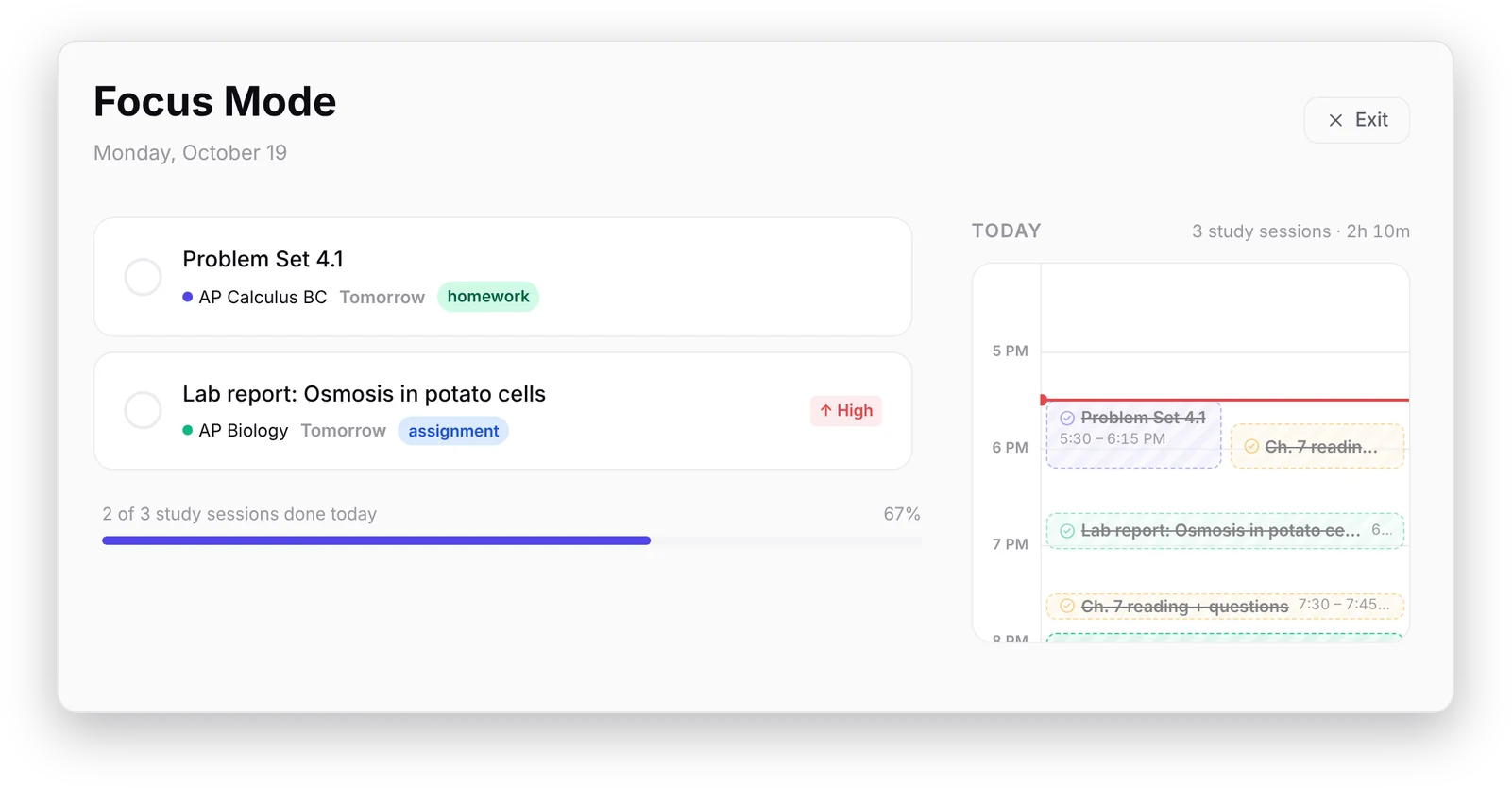
When a study session is about to begin, its block in Focus Mode shows Start, which opens the study timer right there. The progress bar now counts today’s study sessions.
Today’s schedule in Focus Mode
Focus Mode now shows today beside your list: study sessions, goal blocks and calendar events by time, with a line at now. Tap a session to tick it off.
Past version
Search by date
2026-10-11 to 2026-10-11c
What’s new:
Search by date
Type a day into ⌘K, like “friday”, “tomorrow”, “10/16”, “next week” or “overdue”, to see what’s due then. Add a class to narrow it: “bio friday”.
Paste or drop to attach
With an assignment open, paste a copied screenshot (⌘V) or drop PDFs and images onto it from Finder to attach them. Class pages take them too.
Search finds attachments
⌘K now matches attachment names and links too, like “khan” for the assignment with your Khan Academy link.
Take a photo
On a phone or tablet, Add attachment has Take photo, which opens the camera so you can snap a handout or the board straight onto an assignment.
Links in Quick Add
Paste a link into Quick Add, like “Lab report Friday https://docs.google.com/…”, and it’s attached to the new assignment instead of ending up in the title. Links in descriptions open with a tap now, too.
Past version
Exams
2026-10-10 to 2026-10-10c
What’s new:
Exams
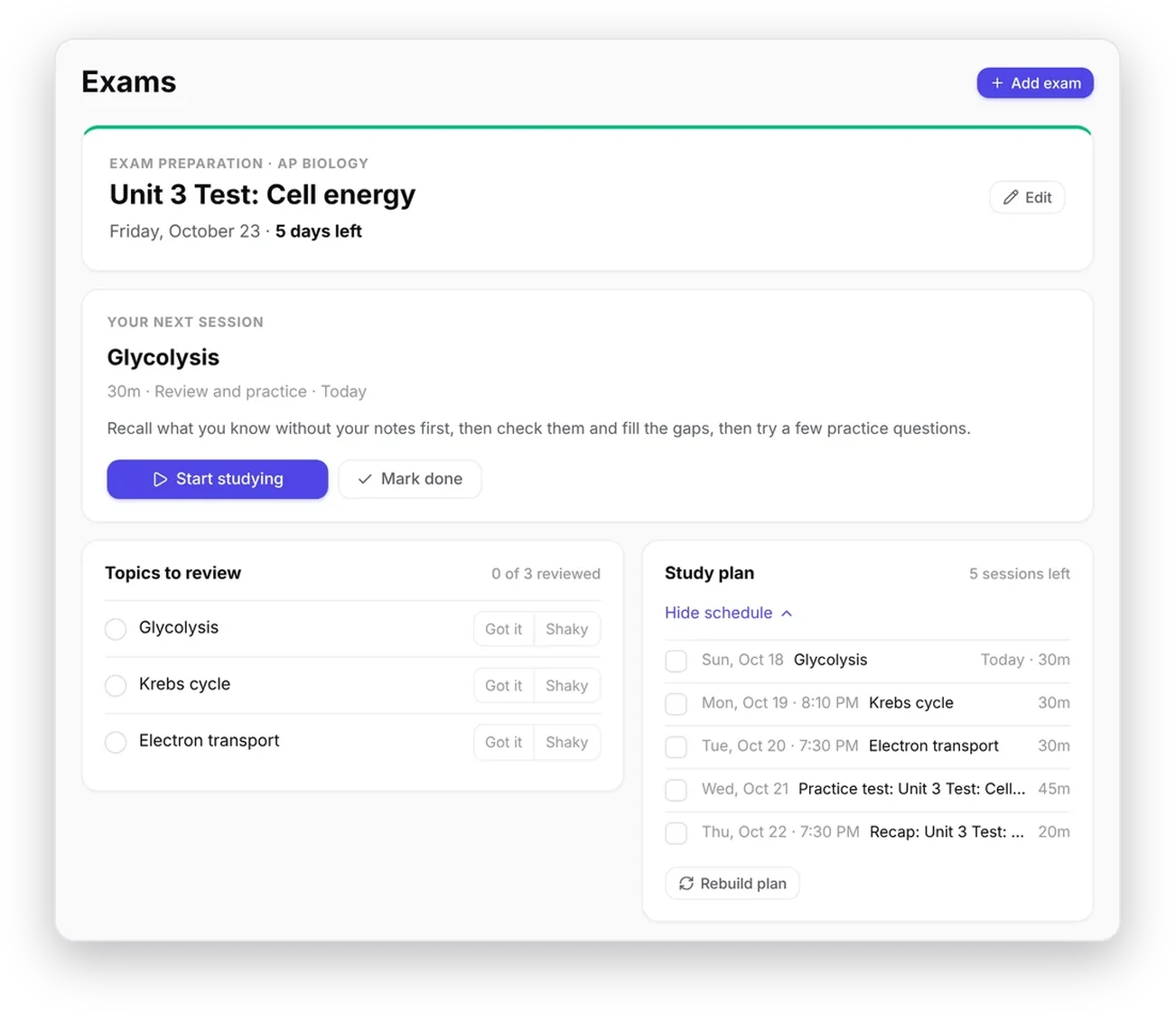
Turn on Exam mode in Settings → Automation for an Exams page. Add the class and the date (or pick a test already in Planner), and see a study plan before anything is booked: a review for each topic, a practice test two days out and a recap the day before, under a daily limit and around your other exams. Start studying runs the timer, Got it or Shaky after each topic decides whether it gets another pass, and missed sessions can be planned again from today.
Search finds more
⌘K now finds pages, your quick links and every option in Settings, too. Settings has its own search box above its sections.
Streak freeze
Miss one day and your streak freeze covers it, once a week, so one bad day doesn’t end a long run. Covered days have their own mark on the streak calendar.
Finish one class
A semester class that ends early can be finished on its own (the archive button on its card, or Edit). It moves to Past Classes with its grade and assignments and keeps counting in this year’s GPA. Its assignments are kept for 60 days, then cleared to save space.
Reorder in the sidebar
Drag classes in the sidebar to change their order. ⌥1 to ⌥9 (Alt on Windows) open your first nine quick links.
Streak milestones
At 7, 30, 100 days and more, a short note on the dashboard marks it.
Quarters and semesters
Archive a quarter, trimester or semester on its own: its grades and GPA are saved under Past Classes, your classes stay, and grades can start fresh for the next one. Restore undoes it.
Streak & Stats
Reminders in the sidebar is now Streak & Stats: your streak with this week’s days, a calendar of every streak day, your best run and the next milestone, plus study time by week and by class. Your reminders are still in Settings → Notifications.
Past version
Running late
2026-10-09 to 2026-10-09b
What’s new:
Running late
Running late on Today’s Plan (or next to Today on the Plan page) pushes the rest of today back 15 minutes, 30 minutes or an hour. Anything that no longer fits moves to your next free time, and Undo puts it all back.
Heavy weeks, caught early
When a week up to three weeks away has three or more tests, projects or essays, the dashboard warns you. Start earlier gives them twice the usual lead time, so some of the work lands in the week before.
Skip a goal for a week
Sick, away or swamped? Not this week, on a goal or a goal block, plans nothing for it until next week, and its streak carries on.
When you get work done
Calendar settings → Study time shows how many sessions you finish by the time they start. Once there’s a clear pattern, the weekly review offers to end your study time earlier.
#hard and #light in Quick Add
Add #hard or #light to set how much effort something takes, like “Calc problem set Friday 45m #hard”.
A reminder to plan your week
With Plan next week on Saturday turned on and notifications allowed, Planner reminds you at 10 am on Saturday if next week isn’t planned yet, and again Sunday if needed. Opening it is all it takes.
Past version
Goal streaks
2026-10-08 to 2026-10-08c
What’s new:
Goal streaks
Hit a goal two weeks running and it shows a streak, like "3 wk streak", on the Plan page and in the weekly review.
Hard work first
Set a class or an assignment to Light, Medium or Hard. The planner puts hard work first in each stretch of study, while you’re fresh, and light work last. It takes effect the next time you plan or replan.
Past weeks
The Plan page now starts at the beginning of this week, and its totals count this week only; days in next week sit under their own heading. Past weeks, at the top right, steps back through earlier weeks to see what got done.
Plan next week on Saturday
Turn it on from the tip on your dashboard or under Calendar settings → Study time, and opening Planner on Saturday plans the week ahead, Sunday included. You can undo it.
Goals in your week
Drag a goal block to another time in the Schedule, and Planner keeps it there when you replan. The weekly review shows how each goal went, like "Run, 2 of 3".
A clearer Plan
The Plan view is one line of totals, then each day under its own heading that stays in view as you scroll, with the same cards as Today’s Plan. Earlier days fold away. The calendar views now go Calendar, Schedule, Plan.
Better on your phone
Swipe an assignment right to finish it or left to move it to tomorrow, and press and hold anything for more. Pull down to check for changes. Search is on the Home screen and in More. Text is bigger, fields no longer zoom the page, and Settings opens as a list.
Past version
A simpler Calendar
2026-10-07 to 2026-10-07c
What’s new:
A simpler Calendar
Month, Week and Day are now one Calendar view: the month, with the day you pick listed under it. Step day by day with the arrows next to its date. Calendar, Plan and Schedule are the three views.
Calendar settings live on the Calendar
The gear next to the month opens them, in tabs: View, Study time, Commitments, Goals and Calendars. They moved out of Settings, and Plan My Week’s Adjust opens the same place.
Personal goals
Add things outside school, like running 3 times a week, reading 20 minutes a day, or college essays 2 hours a week. Plan My Week finds time for them first, spread across the week, and fits school work around them. Find them in the Plan view, or under Adjust.
Know when a due date moves
When a teacher moves or renames an assignment on Blackbaud, the next sync updates the one already in Planner instead of adding a second copy. The dashboard says what moved and where it was, the assignment shows its old date, and with notifications on, your devices get told right away.
Past version
A round of fixes
2026-10-06
What’s new:
A round of fixes
Repeating assignments stay on their day when the clocks change. Grade sync matches each class correctly, and you can pick the class yourself. Editing grades no longer loses synced points. Reminders show once instead of every minute.
Breaks count as breaks
A "Long break" preset, or a break you added a minute to, no longer counts as study time. A timer that finished while Planner was closed always counts now, even if you started another one on a different device.
Calendars read more accurately
Events like "the first Tuesday of the month", weekday-only repeats, and events that run over several days now block the right times when Planner plans your week.
Past version
See how much storage you use
2026-10-05 to 2026-10-05c
What’s new:
See how much storage you use
Each Planner account holds up to 1 MB. Settings → Account now shows how much is in use and what takes the most. Planner warns you well before it fills up.
Old descriptions are cleared
A week after you finish something, its description is cleared to save space. The assignment stays, with its dates, time taken, attachments and link to your school’s page.
The tree icon is back
The tree in the class icon picker was showing as a blank square. It draws again, on any class that already uses it too.
Breaks don’t count toward a class
Starting a break takes the class off the study timer. Your next focus timer picks it back up, unless you’ve chosen a different class in the meantime.
Past version
New versions reach you sooner
2026-10-04 to 2026-10-04b
What’s new:
New versions reach you sooner
If you leave Planner open, in a browser tab, the Home Screen app or the Mac app, it now notices when a new version is out and shows a Reload button. While it’s in the background with nothing in progress, it updates by itself.
Stop the alarm once
When your study timer rings on more than one device, like the Mac app and a browser tab, stopping it on one now stops it on all of them.
Past version
Forgot password? on the sign-in screen
2026-10-02 to 2026-10-02f
What’s new:
Forgot password? on the sign-in screen
If you sign in with email and forget your password, the sign-in screen can now email you a link to reset it. Your passphrase, if you use one, is separate and stays the same.
A heads-up when school sync falls behind
Sync happens when you open your school’s site. If it has been a few days, your dashboard now says so, with a button to open it, so new assignments don’t go missing.
Share Planner with a friend
Share Planner, in the sidebar or the More menu on your phone, sends a friend the link to the Planner website.
Send feedback
Settings → About has a Send feedback button. It opens an email with your Planner version and browser filled in, so a bug is easier to fix.
What’s due today, on Planner’s icon
When Planner is on your Home Screen or installed as an app on your computer, its icon shows how many things are due today, like the Mac app’s Dock icon. On iPhone and iPad it needs notifications allowed. Turn it off in Settings → Account.
Reminders on iPhone and iPad
iPhone and iPad only send notifications from websites on the Home Screen. Planner now says so and shows you how to add it, from your dashboard, Settings, or when you add your first assignment.
Easier with a keyboard or screen reader
Screen readers now announce what each icon button does, dialogs keep your place and give it back when they close, messages are read out, and you can tick off an assignment with Tab and Space. Nothing looks different.
AP and Honors filled in for you
When you add a class, Planner guesses AP or Honors from its name, so your weighted GPA is right from the start. Change it in Add Class if it guessed wrong, or later in the class’s grades.
Saving Settings keeps your notifications on
Saving Settings on a device without push notifications used to turn them off on every device. It doesn’t anymore. If your study session reminders stopped, turn push back on in Settings → Account.
Privacy policy updated
It now says plainly that encryption starts once you set a passphrase, and how your planner is stored before then.
Every update, in one place
Settings → Updates lists everything that has changed in Planner, newest first, a day at a time. What’s new still pops up once when something changes.
Reminders ask at a better moment
Planner no longer asks for notification permission when you sign in. The first time you add something with a due date, it offers a reminder for it, and your browser only asks if you say yes.
Fewer passphrase reminders
If you haven’t set a passphrase, the reminder now waits a few days after you skip it instead of coming back every time you open Planner.
School sync on phones and other browsers
The extension only runs in Google Chrome on a computer. On a phone, a tablet, Safari or Firefox, Planner now says so and points you to Chrome instead of offering an install that can’t work.
Quicker setup for new accounts
New accounts add their classes and go straight to the dashboard. School sync, reminders, the GPA scale and a passphrase wait in a short list there.
Past version
End or Discard a timer early
2026-09-27 to 2026-09-27e
What’s new:
End or Discard a timer early
Reset on the study timer is gone. To stop early, End logs the minutes you studied (a timer started from a session ticks that session off with them) and Discard throws them away, with Undo. The pill's stop button and the pop-out's End log the time too.
Steps left out of tomorrow's count
Steps of a project or study plan no longer count toward Due Tomorrow or Tomorrow's Progress on the dashboard, so those show only the work that's actually due.
Faster sync between devices
Changes show up sooner: an edit is sent the moment you switch away, Planner checks for news the moment you come back, and a search box or dropdown with the cursor in it no longer holds updates back.
One session per step
Steps in a project timeline or study plan now get a single study session on the day they're dated, instead of being split across the days before. Replan to fix steps already in your plan.
Rounder session lengths
Plan My Week now books sessions in 5-minute steps, like 20m or 25m instead of 22m or 23m, starting on the 5 (5:05, not 5:02). Replan to tidy up a plan you already have.
Past version
Estimates from your own times
2026-09-25 to 2026-09-25c
What’s new:
Estimates from your own times
How long Planner expects something to take now comes from the times you reported for that kind of work in that class. Bio labs, Latin labs and Bio quizzes each keep their own number. Recent times count most, one odd night can't swing it, and it leans on a starting guess until you've reported a few.
Your timer counts as a reported time
Finish something whose planned sessions all ran on the timer, and that time is counted for you. If only some did, Planner offers the timed total with one tap.
View week can open the Schedule
The View week button on Today's Plan can now open this week's Schedule instead of the Study Plan. Choose in Settings → Calendar.
A new address: app.severnplanner.com
Planner now has its own address. The old one still works, and your account is the same on both. On the new address you sign in once, and enter your passphrase once if you use one.
Drag sessions anywhere
On a computer, strips appear beside the calendar while you drag a study session. Hold it over Previous week or Next week to turn the page. In the Schedule view, drop it on an exact time, not just a day.
Edit a session in place
Click a study session on the calendar, or the pencil on its card, to change its day, start time or length, or remove it. Nothing else in your plan moves.
Book time on the Schedule
Click an empty spot on the Schedule view to book study time there for any assignment. It suggests how long based on what's left to do.
Replan keeps what you placed
Sessions you moved, edited or booked yourself stay where you put them, and the rest of the week is planned around them. Replan those too if you want a fresh start.
New work joins your plan
Assignments you add, or that sync in from your school, are fitted into your free time around your plan, without moving anything else. Turn it off in Settings with Auto-schedule new work.
"Finished?" after the last session
When you tick off the last session planned for something you haven't marked done, Planner asks. Say it's done, or add 30 minutes or an hour and it books the time.
Heads-up when your schedule changes
If a calendar sync or a new commitment lands on top of a planned session, you'll see it, with Move to find the next free time or Leave to keep it there.
Past version
Your timer on every device
2026-09-24 to 2026-09-24d
What’s new:
Your timer on every device
Your study timer now shows up on all your devices. Start it on your laptop and you'll see it on your phone. You can pause, stop or add time from either one, and your study minutes only count once.
Change type for several at once
In Select mode on the Assignments page, the new Type menu changes every selected assignment to a test, quiz, homework or any other type. It has an Undo.
Google Classroom sync
Planner now connects to Google Classroom as well as Blackbaud, Canvas and Schoology. Add it in Settings → School connection, then open Classroom: your classwork, due dates, returned grades and class grades come across on their own. It needs version 1.3 of the Severn Planner extension.
Recently deleted
Deleted an assignment or a class by mistake? It stays in Settings, under Recently deleted, for 5 days. Restore puts it back with its reminders and files.
"Next class" in Quick Add
With the Schedule view on, "Lab report bio next class" or "worksheet next Bio" is due at the start of that class's next meeting.
Live sync across your devices
Changes show up on your other devices within a few seconds, without reloading. Edits made on two devices at once are combined instead of one replacing the other, and anything done offline is merged in when you reconnect.
Past version
Focus sounds
2026-09-23
What’s new:
Focus sounds
The study timer can play rain, waves or brown noise while you work. Pick one next to Studying for. It goes quiet for breaks and when time's up.
Was your prep enough?
The day after a test or quiz, the dashboard asks whether you studied enough. Your answer changes how much prep time the next one in that class gets.
Past version
Start a study session from its card
2026-09-22
What’s new:
Start a study session from its card
Ten minutes before a session, its card in Today's Plan shows Start. It runs the timer for that session and checks it off when time's up.
Set a GPA goal
Goal on the Grades page shows the smallest grade change in each class that would raise your GPA, and how many of them it takes to reach your target.
Handle several assignments at once
Tap Select on the Assignments page to mark a batch done, move it to another day, or delete it. Each has an Undo.
Reminders before study sessions
Planner can remind you 10 minutes before each session, even when it's closed. If notifications never arrived for you before, they should now.
Catch up on missed sessions
If a session slips by, Catch up in Today's Plan moves it into your next free time before it's due, without reshuffling the rest of your week.